
How to Watch a Wallet's Transfers
A transfer is money or tokens moving from one wallet to another with no trade attached. Axiom shows them in two places: a live feed for the wallets you track, and a history tab on every wallet. Here is how to read both and what a transfer is usually telling you.
 Updated November 29, 2026
On this page
The Transfers tab in the tracker
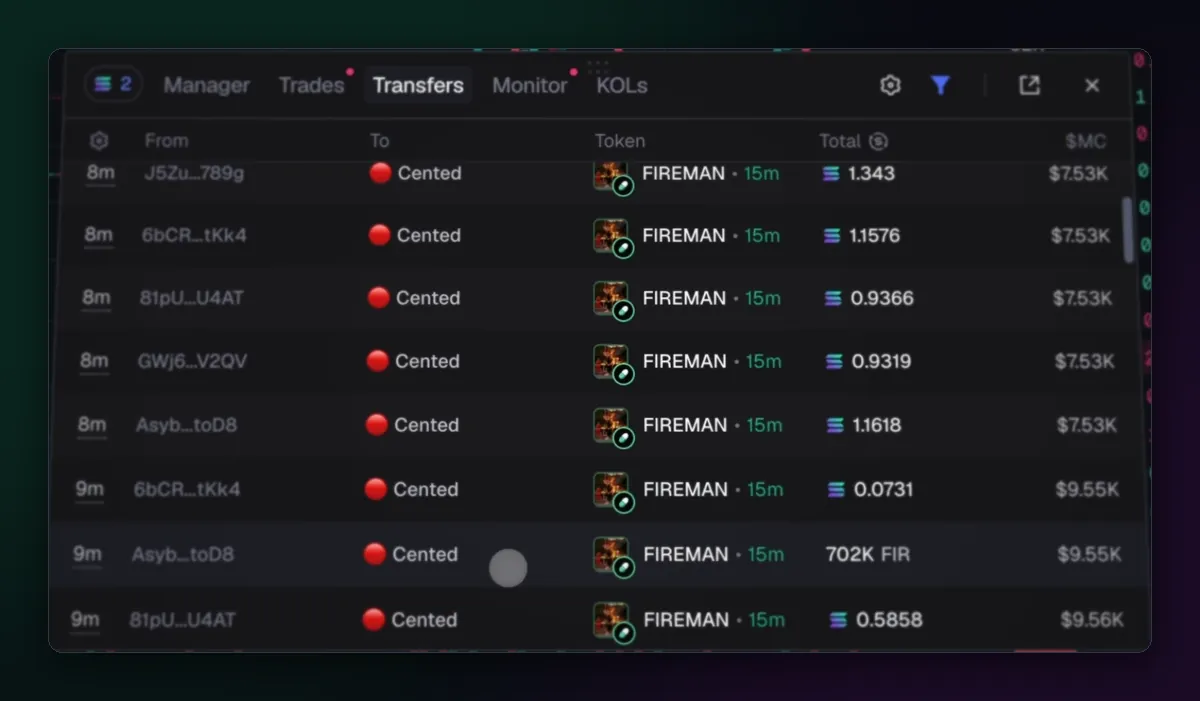
The tracker's tabs run Manager, Trades, Transfers, Monitor and KOLs. Transfers lists every movement in or out of a tracked wallet as it happens. A row gives the age, the sender under From, the receiver under To, the token, the total and the token's market cap. Your tracked wallets appear with the name and emoji you gave them, and everyone else is a shortened address, so the direction is obvious.
Open the wallet behind a row
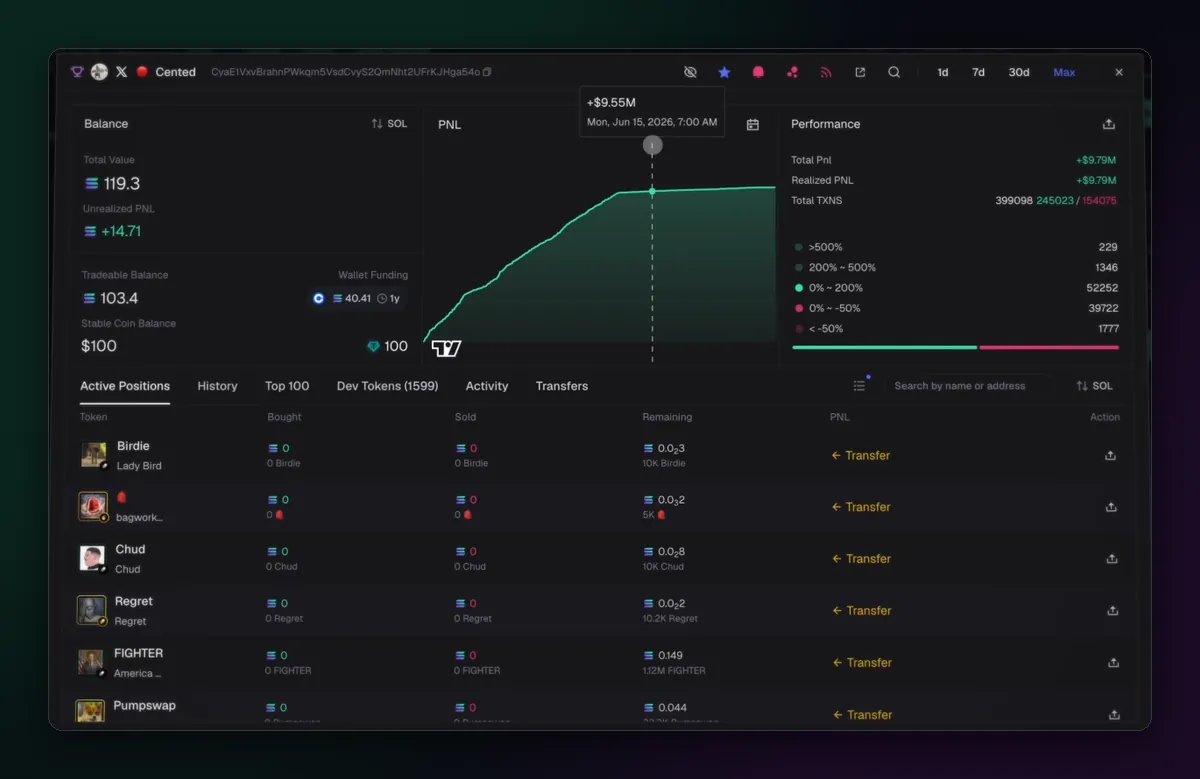
Click a name in the feed and that wallet's window opens: balance, a PnL chart and tabs for Active Positions, History, Activity and Transfers. In Active Positions, a holding that arrived by transfer is tagged Transfer in the PnL column, with zero bought and zero sold beside it. Those bags were sent in, not earned, so do not read them as the wallet's own picks.
Your own transfers in Portfolio
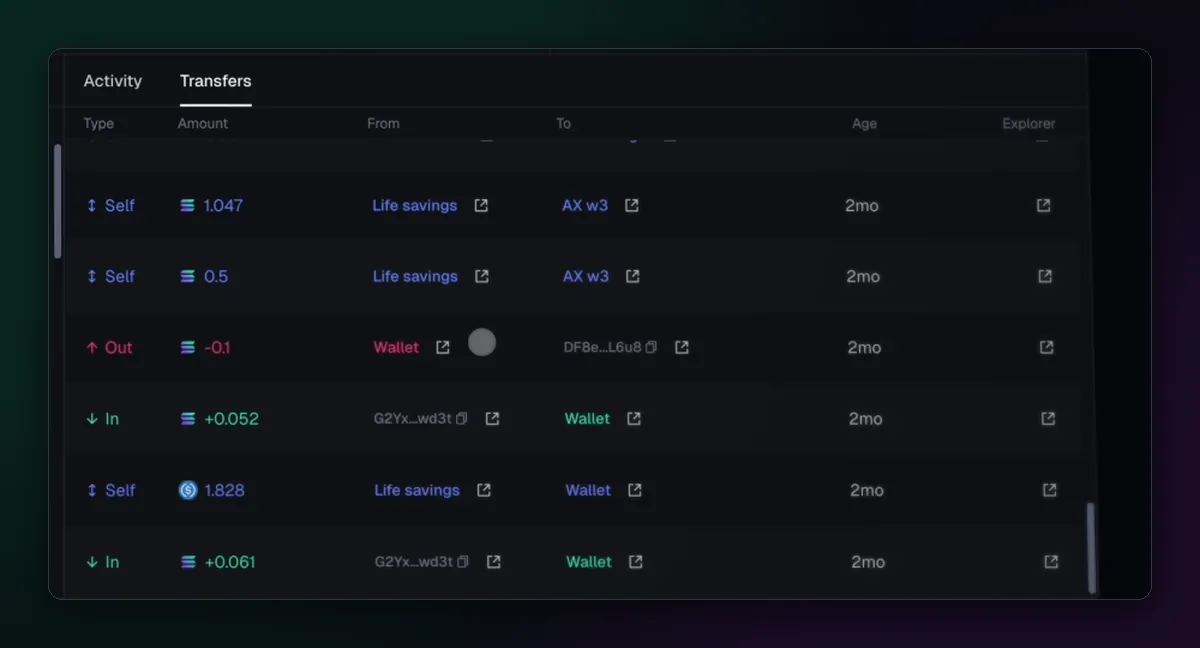
On the Portfolio page, Transfers sits beside Activity. Each row has a type. In is green with a plus, Out is red with a minus, and Self is a move between two of your own wallets, both shown by name. It is the quickest way to answer "where did that SOL go" before you start doubting the balance. How to Read Your Axiom Portfolio covers the page around it.
Check any wallet's history
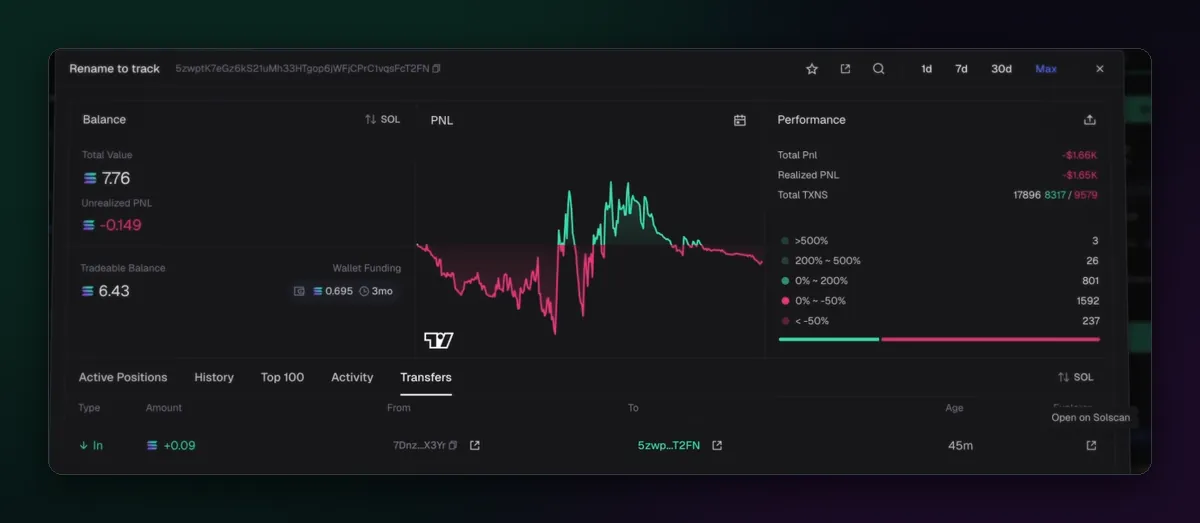
The wallet window has this list for strangers too. Open a holder or a top trader, pick Transfers, and you see what came in and went out, from whom and how long ago. The icon at the end of a row opens that transaction on Solscan; How to Look Up a Past Trade on Solscan explains what you will find there.
What a transfer tells you
A transfer is not a sale. When a wallet you follow sends its bag to a fresh address, nothing has hit the market yet, and dumping your own on that alert is how you sell the bottom. Watch the receiver instead. If it sells, you have found the trader's second wallet, and it belongs in your list: How to Add a Wallet to the Wallet Tracker takes a minute. A run of small deposits out of unnamed addresses, like the one in the first picture, usually means one person pulling funds together.

Written by Mohammad Shahpari · Web3 CMO, Crypto Growth & SEO Specialist · X · LinkedIn
Did this answer your question?