
How to Log In to Axiom with Email, Google or Phantom
An Axiom account opens the same way every time: with the method you signed up with. Press the same button and you land back on your own wallets, balances and settings.
 Updated November 6, 2026
On this page
Open the login window
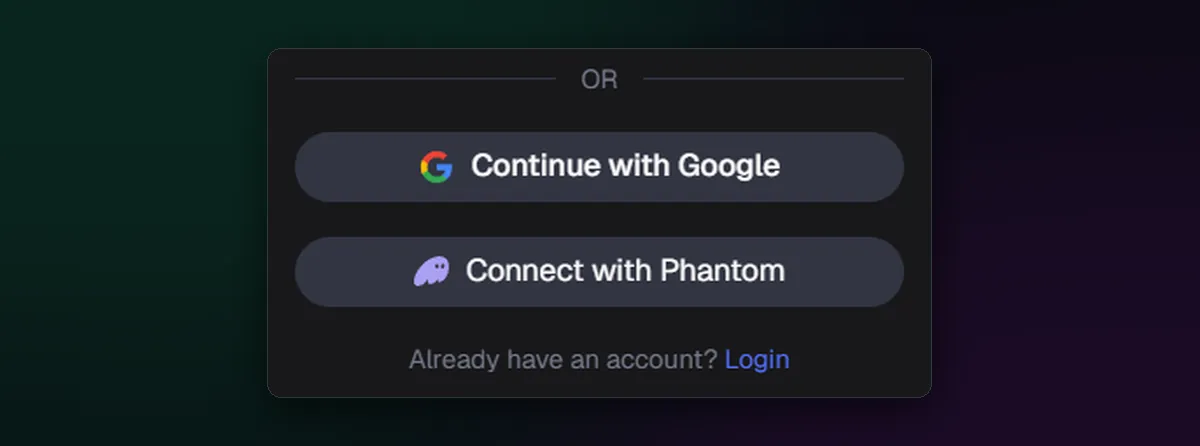
Go to axiom.trade from your own bookmark and click Login. The window offers the same three doors as sign-up: an email box, Continue with Google and Connect with Phantom. If the sign-up form opens instead, the Login link is underneath the Phantom button.
Use the method you signed up with
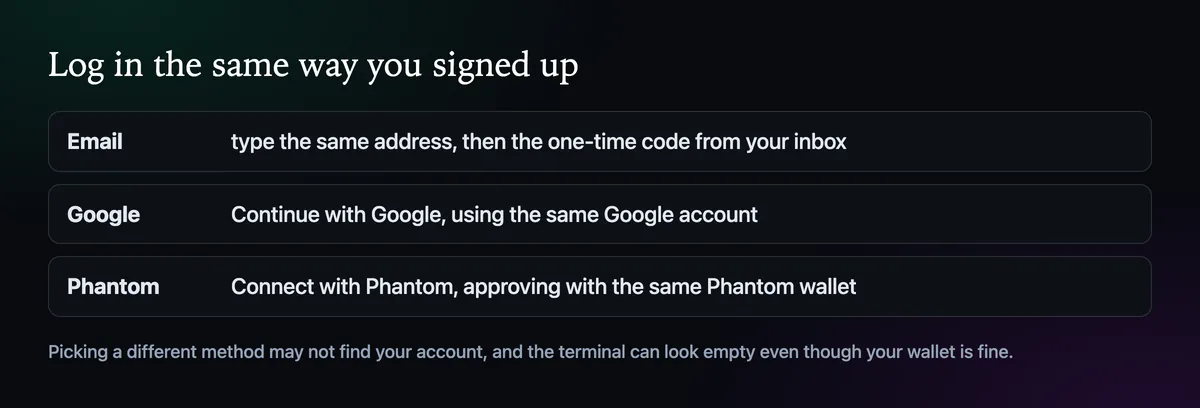
- Email. Type the address you registered, wait for the one-time code and paste it in. If you asked for a code twice, use the most recent email.
- Google. Press Continue with Google and pick the same Google account. Browsers that hold several Google profiles often suggest the wrong one first.
- Phantom. Press Connect with Phantom, type Phantom's password if it asks, and approve. Check that Phantom has the same wallet selected as on the day you signed up.
If the terminal looks empty after you get in, the method is the first thing to check. Log out and come back through the button you used originally before you worry about the balance.
Check you are in the right account
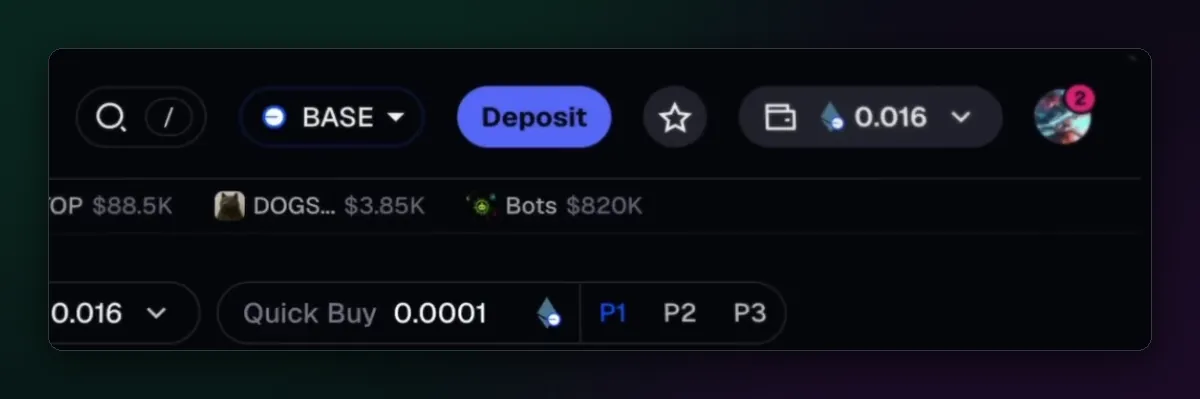
Once you are in, the top bar shows the chain selector, a Deposit button, your wallet balance and your profile icon. The balance follows the chain that is selected, so SOL won't show while Base is picked; switching chains explains why. Before trading, compare the wallet address with the one you funded.
Logging in on a phone or a second computer
There is no separate mobile account. Open axiom.trade in Safari or Chrome on the phone, log in the same way, and add the site to your home screen so it opens like an app; our Axiom app download guide has the taps for iPhone and Android. Every browser and device keeps its own session, so log in on each one, and log out when you finish on a computer that isn't yours.
Keep logins safe
Log in only at axiom.trade, typed or bookmarked. Approve a Phantom request only when you started it yourself a second ago. And keep browser extensions to the few you trust: in September 2026 researchers found add-ons that copied logged-in Axiom sessions without ever touching a password.
If the login itself fails, work through Can't Log In to Axiom? What to Check.

Written by Mohammad Shahpari · Web3 CMO, Crypto Growth & SEO Specialist · X · LinkedIn
Did this answer your question?