
How to Turn On Live Trade Alerts
Live trade alerts tell you the moment a wallet you track buys or sells, as a small notice on screen and in the Live Trades feed. Set them up well and you see the moves without staring at the tracker.
 Updated November 11, 2026
On this page
The Live Trades feed
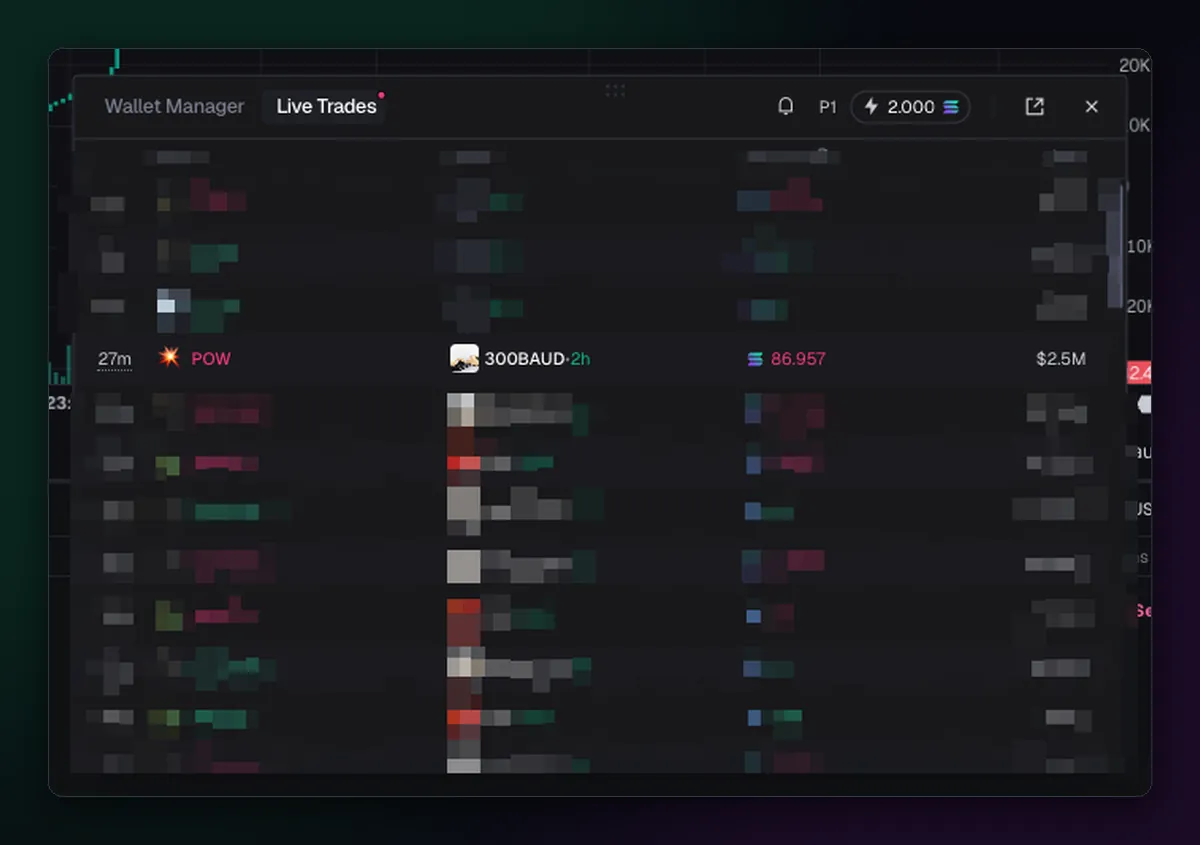
The wallet tracker's trade feed lists every buy and sell by your tracked wallets as it happens: how long ago, which wallet, which token, how much and at what market cap. It also runs alongside Pulse, so you see your wallets move while you browse new coins. The feed has its own preset and a Quick Buy amount, so you can follow a buy from the row it appears on.
Turn on notifications
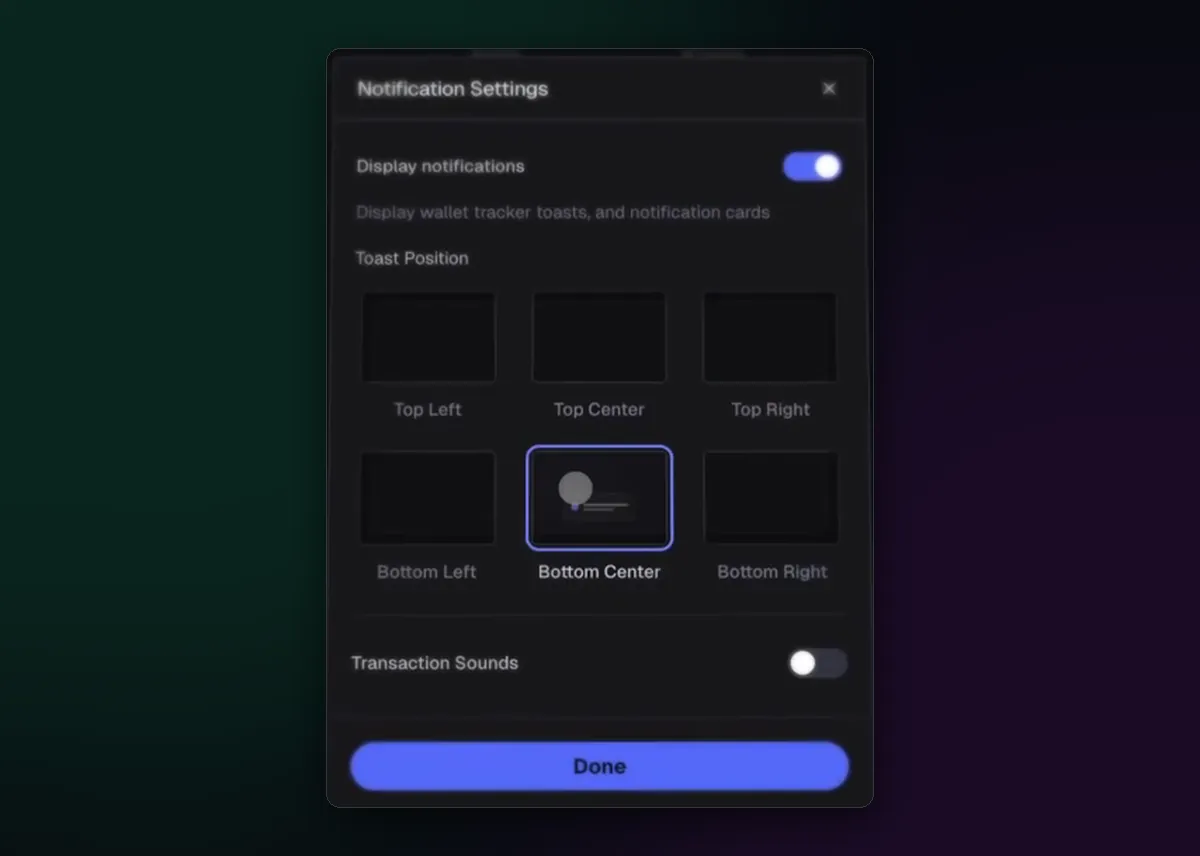
- Open Notification Settings from the tracker.
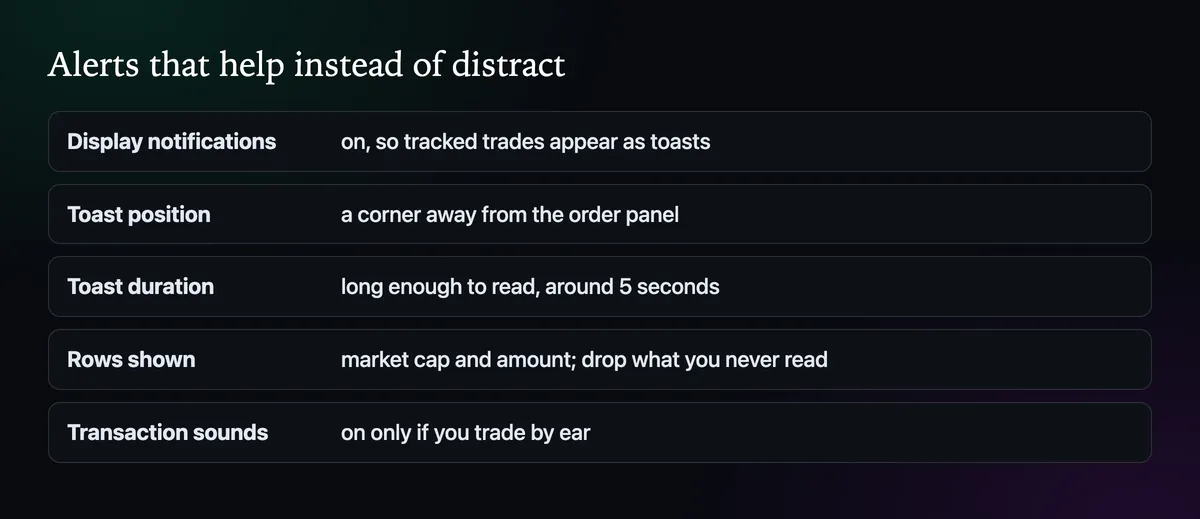
- Switch on Display notifications. Wallet tracker trades now appear as toasts, small cards on screen.
- Pick a toast position, one of six spots from top left to bottom right. Choose a corner away from the order panel so a toast never covers the Buy button.
- Decide on Transaction Sounds. Useful if you work with the chart on another screen, annoying otherwise.
Shape what a toast shows
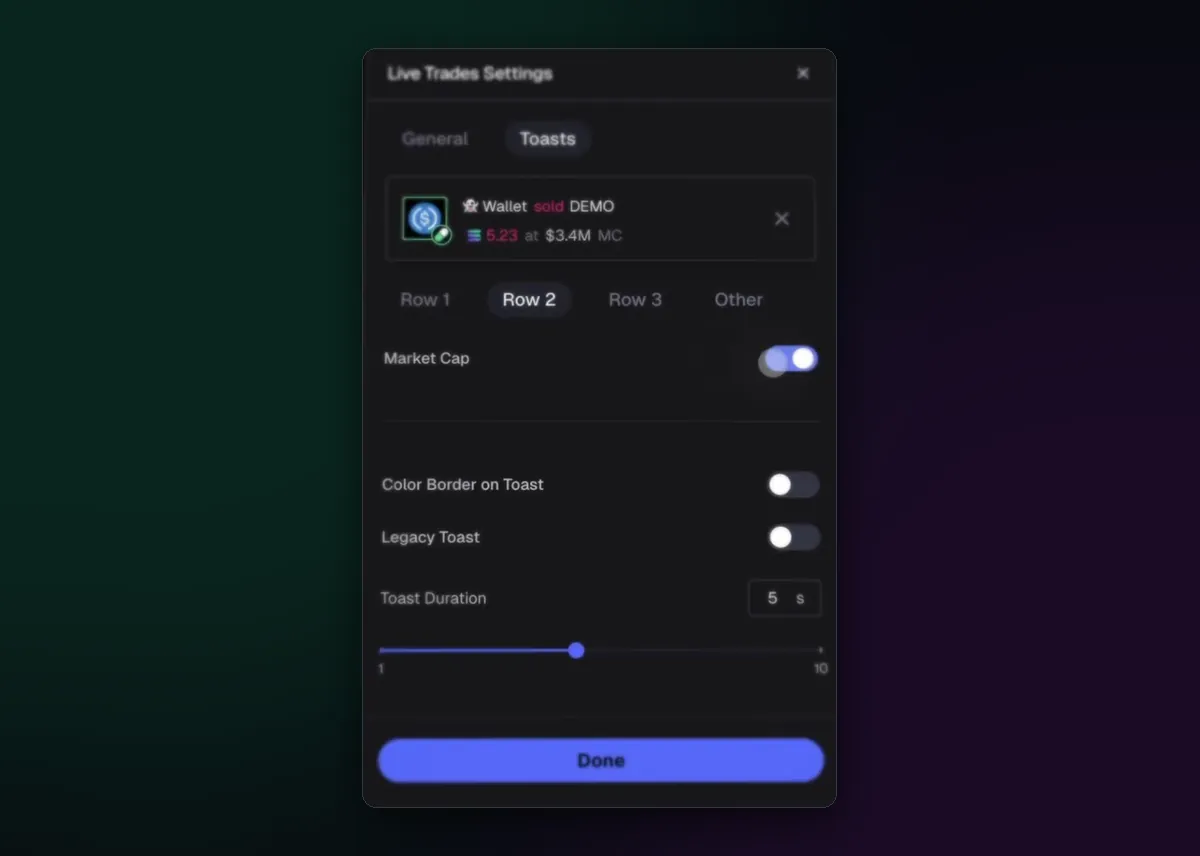
In Live Trades Settings, the Toasts tab shows a preview card and lets you choose what each of its rows displays, such as market cap or a detailed trade type. Colour Border tints toasts by buy or sell, Legacy Toast brings back the older style, and Toast Duration sets how long each stays, five seconds by default. Advanced toasts and their positions were added in July 2025.
See where the wallets are positioned
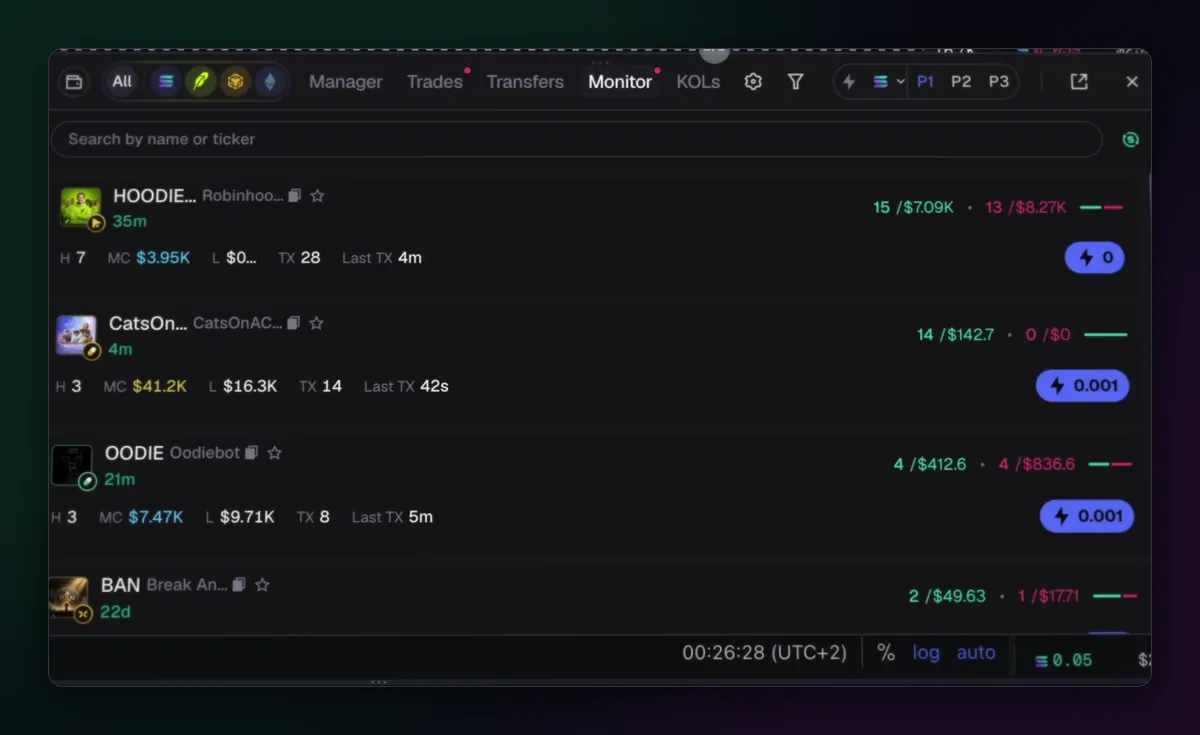
Alerts tell you about single trades. The Monitor tab shows the result: every coin your tracked wallets are in, with how many of them hold it, its market cap, liquidity, trade count and last trade. A coin held by seven of your wallets says more than one wallet's buy alert.
Acting on an alert
An alert is a reason to look, not to buy. By the time a toast appears, the wallet already has its price and you won't. Open the coin, check its holders as in How to Read Holder, Dev and Bundle Data, and decide. The copy trading page covers following wallets by hand without overpaying for it.

Written by Mohammad Shahpari · Web3 CMO, Crypto Growth & SEO Specialist · X · LinkedIn
Did this answer your question?