
How to Filter a Token's Trades
On a busy coin the trades list scrolls faster than anyone can read. Axiom lets you cut it down by who traded, by a single wallet, by one candle or by size. This is what each filter does and when it earns its place.
 Updated November 25, 2026
On this page
DEV, TRACKED and YOU
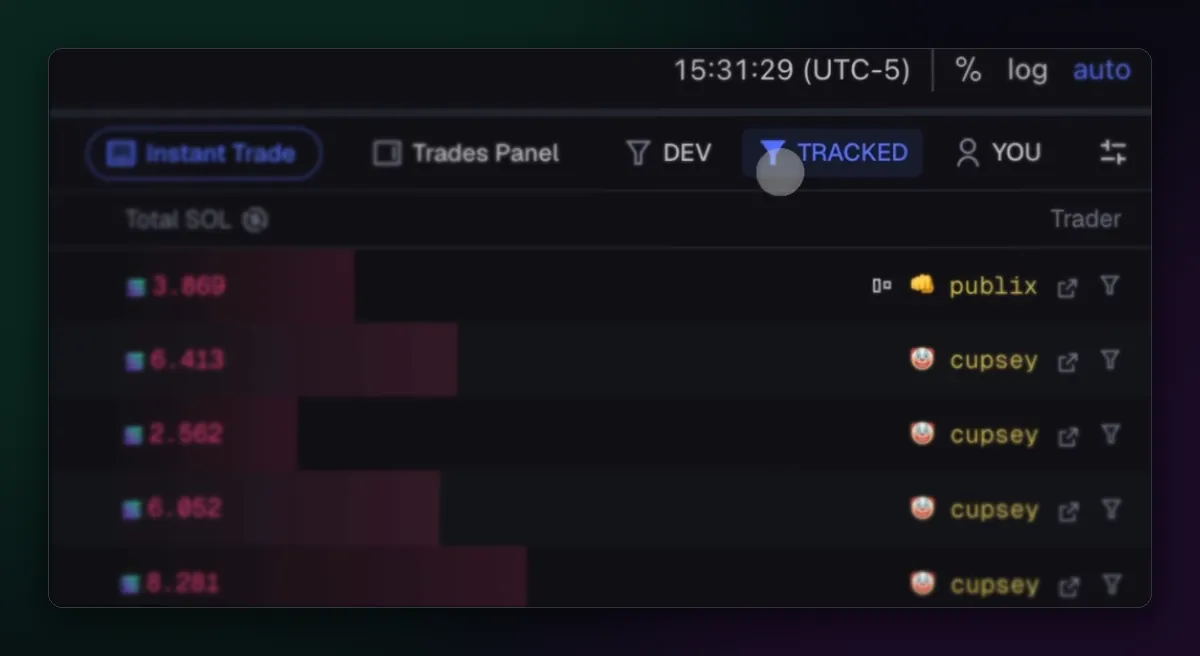
The row above the trades has three quick filters. DEV leaves the developer's trades, TRACKED leaves wallets from your tracker, YOU leaves yours. With TRACKED on, the Trader column shows the names you gave those wallets, which is much easier to read than addresses. The Top Traders and Holders tabs have an Only Tracked switch that does the same to those tables.
Follow one wallet
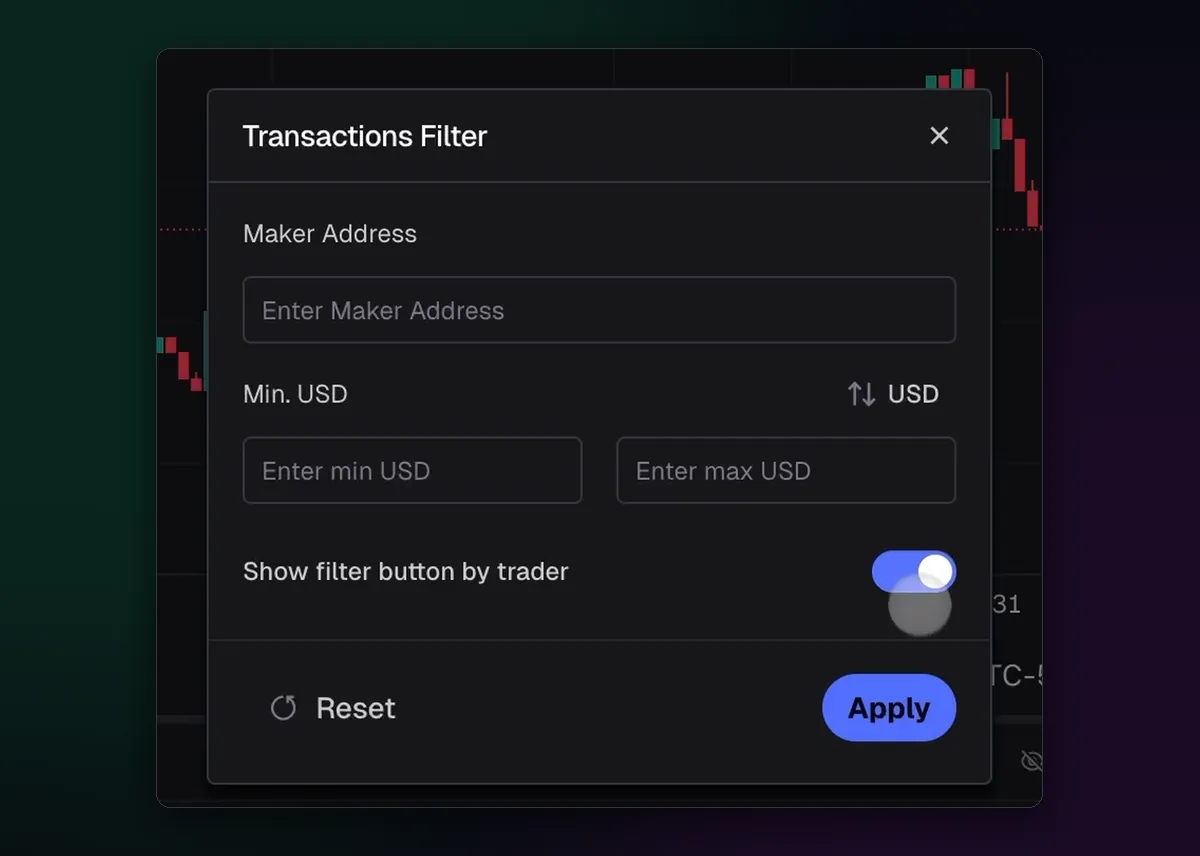
Every row has a small funnel next to the trader. Click it and the list shrinks to that wallet, with a line on top counting the transactions shown for that maker and a RESET link. The Transactions Filter window does the same from a pasted maker address, and adds a minimum and maximum trade size in USD. Its last switch, Show filter button by trader, decides whether the funnels appear at all. Once a wallet looks interesting, How to Use Trader Scan gives its totals.
Click a candle
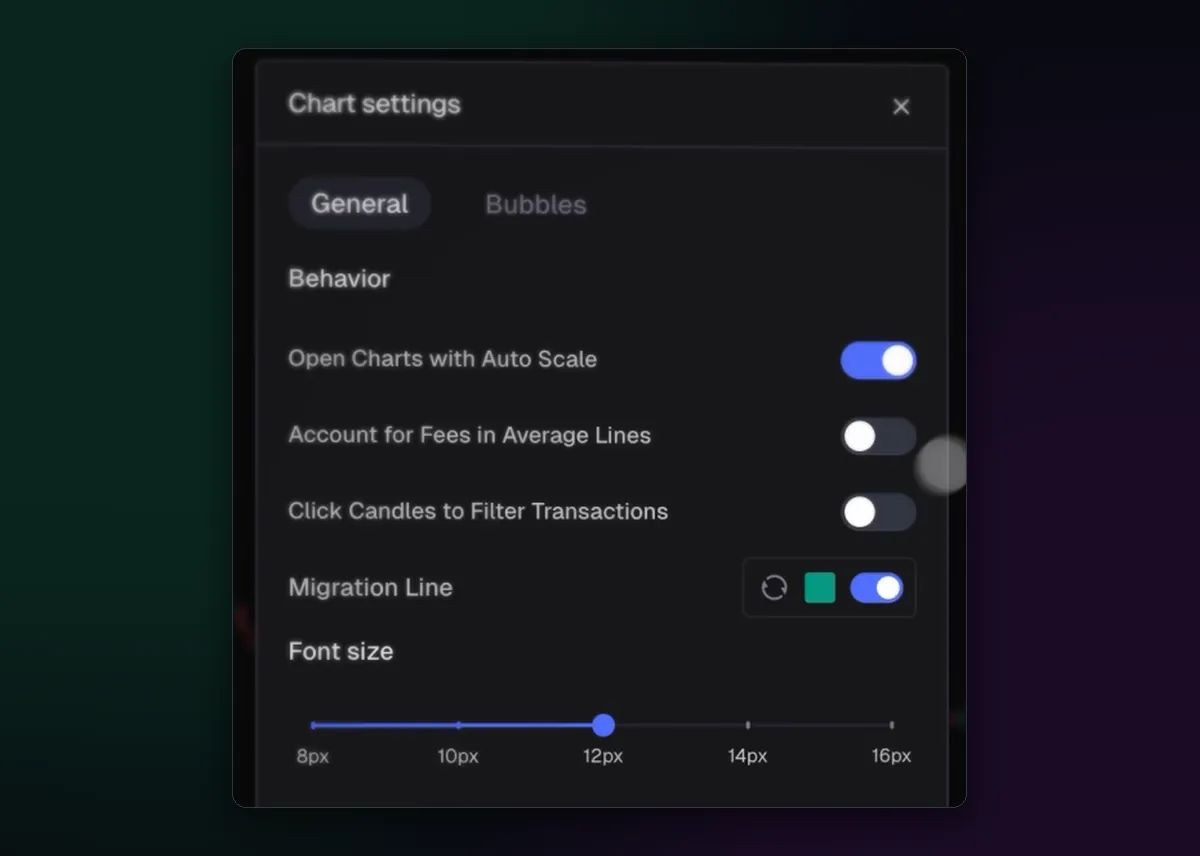
In Chart settings, under Behavior, switch on Click Candles to Filter Transactions. After that, clicking a candle limits the list to the trades inside it. Use it on the big ones. A tall green candle made by one wallet and a tall green candle made by forty wallets look identical on the chart and mean opposite things.
Pick wallets by name
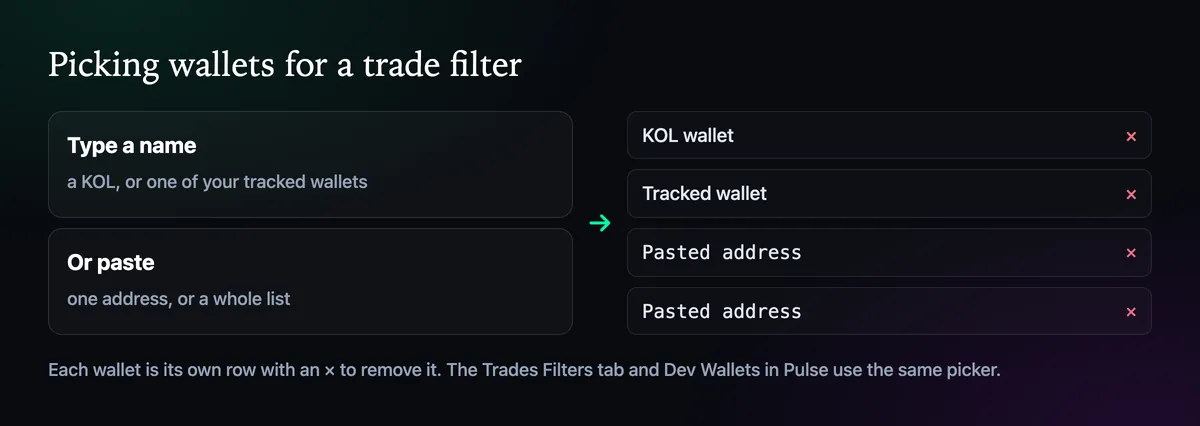
The wallet filter accepts names as well as addresses. Type a KOL or one of your tracked wallets, or paste a single address or a whole list. Each wallet lands as its own row with an × to remove it. The Trades Filters tab and Dev Wallets in Pulse use the same picker.
Filter Live Trades by market cap
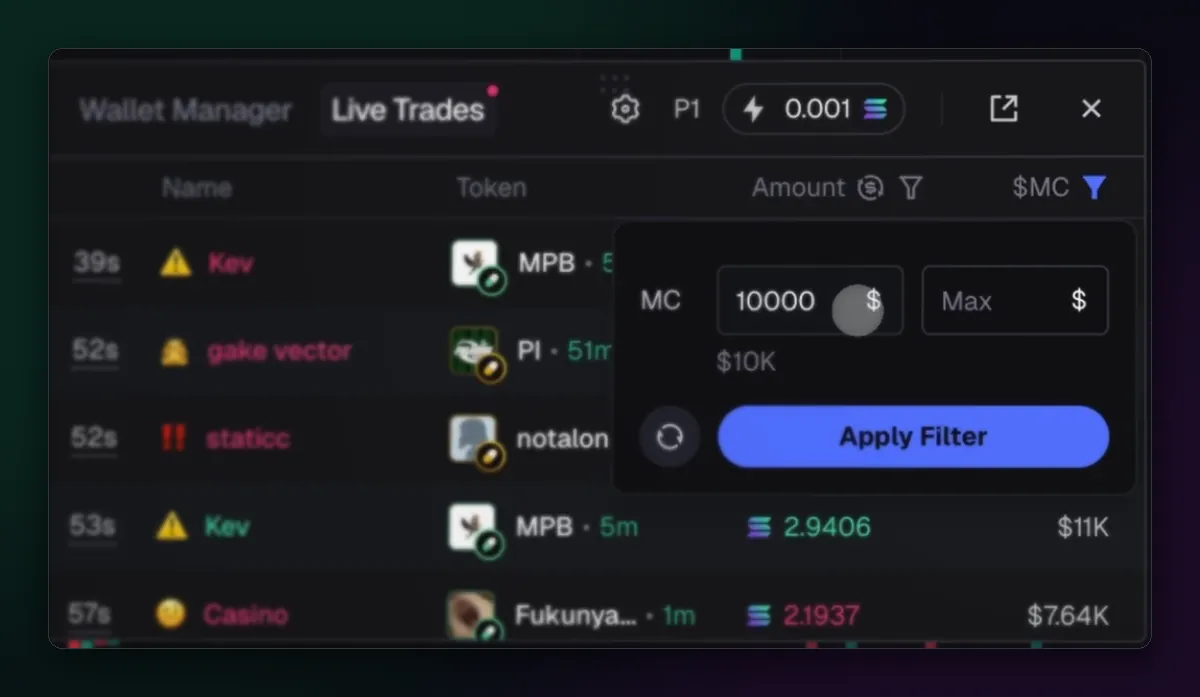
Live Trades, the feed from How to Turn On Live Trade Alerts, has a funnel on its $MC column. Enter a minimum, a maximum or both, then press Apply Filter. A $10K floor hides most of the minute-old coins your wallets throw small buys at. Each token picture in the feed also carries a badge for the protocol it trades on.

Written by Mohammad Shahpari · Web3 CMO, Crypto Growth & SEO Specialist · X · LinkedIn
Did this answer your question?