
How to Use Surge Alerts
Surge is a tab in Discover that raises an alert when a token's activity jumps. The alerts are produced by an algorithm, and each one stays on the board with a record of what the coin did afterwards. Here is how to read a card, what the two columns mean and why an alert alone should never set your size.
 Updated November 23, 2026
Open the Surge board
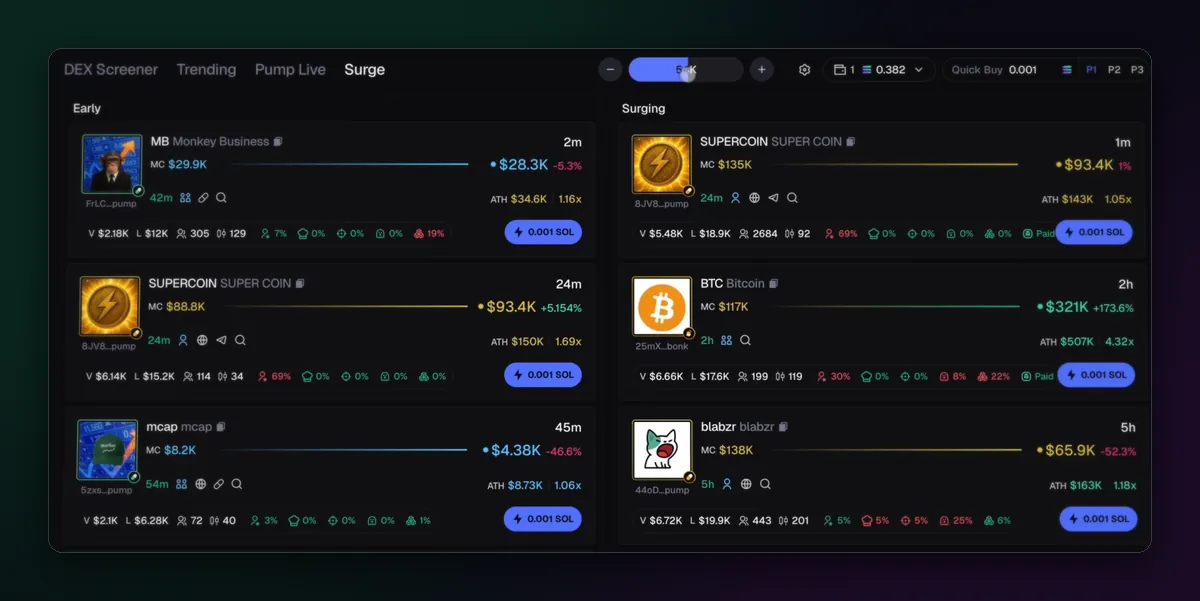
Surge sits in Discover's tab row beside DEX Screener, Trending and Pump Live. The board has two columns, Early and Surging, and every alert is a card. Nobody curates it. New cards arrive by themselves while the page is open, so leave it on a side screen instead of refreshing.
Read one card
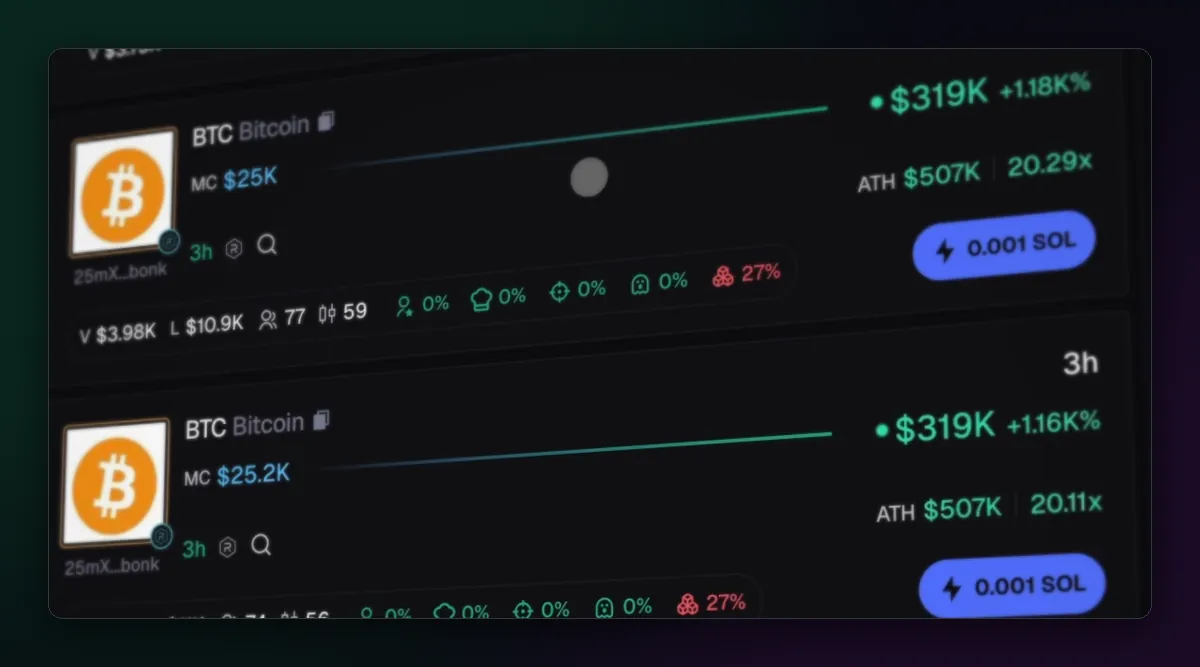
A card answers one question: what happened after the alert? Under the name, MC is the market cap when the alert fired. A line runs to the figure on the right, which is the market cap now with the change since, in green or red. Below it, ATH is the highest market cap reached after the alert and the multiple that made. MC $25K with ATH $507K and 20.29x is a coin that went twenty times before it topped out.
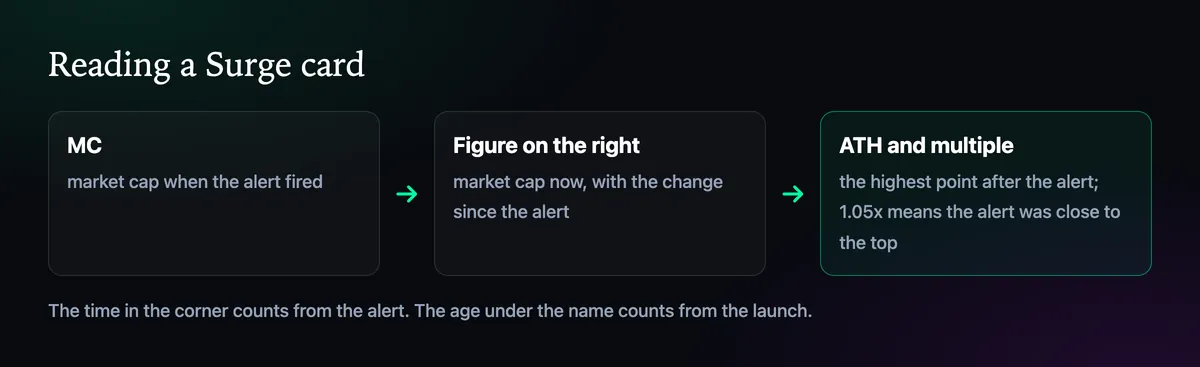
The time in the corner counts from the alert, and the green age under the name counts from the launch. The bottom line carries volume, liquidity, holders and the usual risk percentages, with Quick Buy at the end.
Early, Surging and the slider

Above the board is a slider with minus and plus buttons and a market cap figure on it. With it at 51K, every card under Early had an alert market cap below that number and every card under Surging sat above it, so read it as the line between the two columns. The same token can appear more than once, one card per alert. A second alert at a higher market cap tells you the first was not a one-off.
Use it as a scoreboard
Scroll the board before you trust it. Plenty of cards are red: a coin alerted at $16.5K that now sits at $4.25K, or an ATH of 1.05x, which means the alert was more or less the top. An alert says something moved. It does not say why, or who is selling into it. Open the token and check the holders with How to Read Holder, Dev and Bundle Data before you size anything. The other Discover tabs are covered in How to Use Discover and Trending, and the memecoin sniper page has a routine for acting on fast movers.

Written by Mohammad Shahpari · Web3 CMO, Crypto Growth & SEO Specialist · X · LinkedIn
Did this answer your question?